
Automations
Automation use cases
Complete processes built with the automation engine, step by step. Employee onboarding across IT, HR and Facilities, purchase approvals, cancellation fee ladders, feedback loops, GDPR retention and an AI first response on every ticket.
Updated Aug 19, 2026
Configuration · Automation · 9.2.2
The building blocks are on the Automations page and the flow options on Advanced automations. This page puts them together: six complete processes you can rebuild in your own tenant, from a single trigger to the last email. Each one is written as the step list you would enter in the Editor, with the drawing below it exactly as the Diagram view draws it; rebuild the rule and you should recognise the picture.
A practical tip before you start: build the whole rule while it is still inactive, dry run it against one real record, and only then switch it on. Every process below survives that test.
1. Employee onboarding across IT, HR, Facilities and Security
The classic cross-department process. A new colleague is coming; IT must prepare accounts and a laptop, HR must finish the paperwork, Facilities must arrange a badge and a desk, Security must sort access rights and permits. Nobody should wait on anybody else where they do not have to, and the manager should hear about it exactly once: the moment everything is ready.
Setup: a ticket template “New employee” with custom fields for the start date, the department and the manager. The rule runs on tickets, trigger Created, condition: template equals New employee, so a ticket raised from any other template never starts the process.
| Step | Starts | What it does |
|---|---|---|
| 1 · Create task | With the trigger | "Workstation ready", assigned to the IT workgroup, due five days before the start date. This is the IT lane's main task. |
| 2 · Create task | Subtask of step 1 | "Create accounts": Microsoft 365, the business applications, the phone plan. |
| 3 · Create task | Subtask of step 1 | "Prepare laptop": image, enrolment, accessories. |
| 4 · Wait | IT lane | On the tasks above, the subtasks included. Time limit: give up after 5 days, then run the steps below anyway. |
| 5 · Send chat message | IT lane | Only if a task is still open (step condition): nudge the IT workgroup in Teams or Google Chat. |
| 6 · Create task | At the same time as step 1 | "Contract, payroll and systems", assigned to the HR workgroup. This opens the HR lane, parallel to IT. |
| 7 · Wait | HR lane | On the tasks above, with the same five day limit. |
| 8 · Send chat message | HR lane | Nudge HR if its task is still open. |
| 9 · Create task | At the same time as step 1 | "Access badge, desk and welcome package", assigned to the Facilities workgroup. The third parallel lane. |
| 10 · Wait | Facilities lane | On the tasks above, with the same five day limit. |
| 11 · Send chat message | Facilities lane | Nudge Facilities if its task is still open. |
| 12 · Create task | At the same time as step 1 | "Access rights and permits", assigned to the Security workgroup. The fourth parallel lane. |
| 13 · Wait | Security lane | On the tasks above, with the same five day limit. |
| 14 · Send chat message | Security lane | Nudge Security if its task is still open. |
| 15 · Wait | Where the lanes meet | Until the branches are done: the join that collects all four lanes. If a lane stops early, stop the rule, so a broken onboarding never reports itself as finished. |
| 16 · Send email | After the join | To the manager (a user field on the ticket): everything is ready for the start date. It goes out the moment the last lane finishes, no artificial delay. |
| 17 · Update fields | After the previous step | Set the ticket status to Ready. |
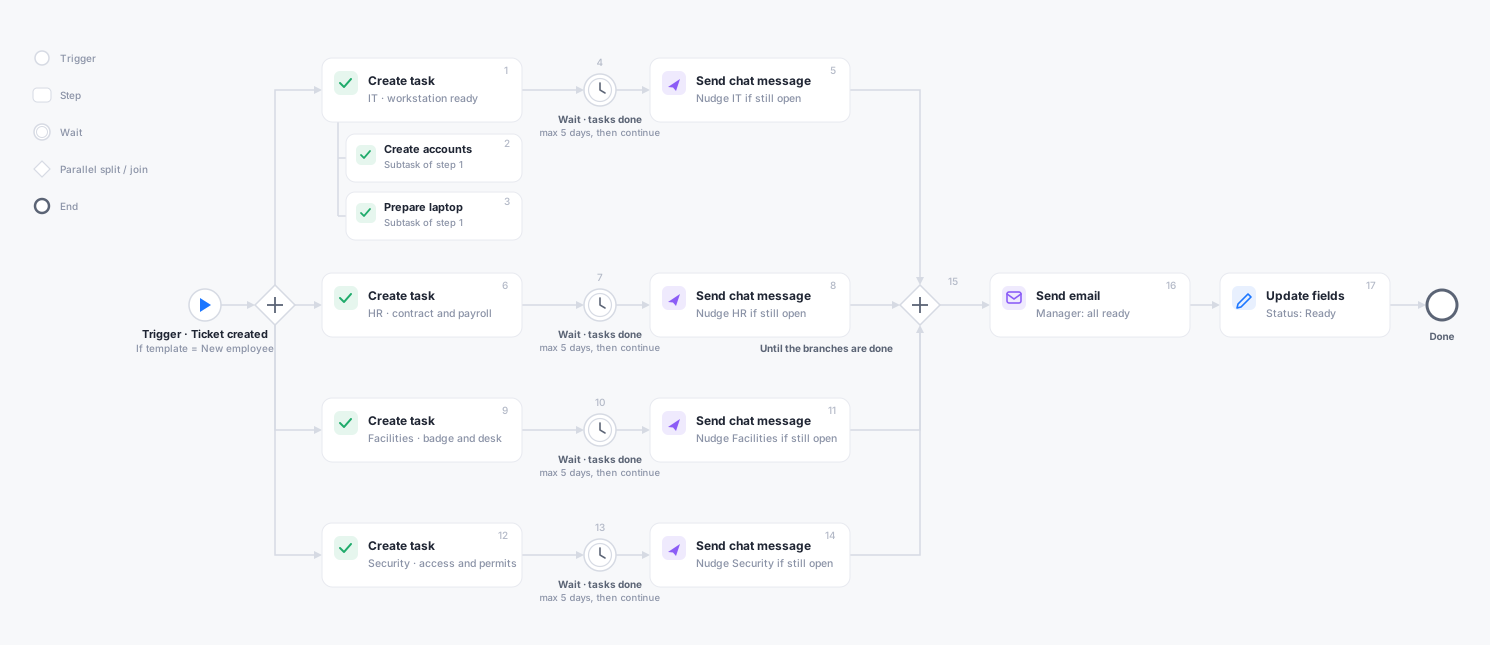
Everyone sees the whole plan from minute one: the tasks below the waits exist immediately as pending tasks on the ticket, subtasks included, they just cannot be completed before their turn. The four departments work in parallel, every lane chases its own team after five days, and the manager gets exactly one email, the moment the last task is done.
Three variations worth considering. Add a Wait at a specific moment, anchored three days before the start-date field, in front of a welcome message to the new hire: a touchpoint that should land on the calendar belongs behind a moment, while the ready confirmation above rightly goes out the moment the work is done. Swap a lane’s single wait for a separate branch per record when you want to chase every task’s assignee individually rather than the lane as a whole. And for offboarding, build the mirror image: the same four lanes, but the tasks revoke instead of prepare, and the final step is an Anonymize record action on a schedule after the retention period.
2. Purchase approval
A service request above a threshold needs a manager’s yes before anyone orders anything. The answer does not exist yet when the rule fires, so this is a wait on a record change, not a condition.
Setup: the rule runs on tickets, trigger Created, conditions: type equals Purchase request AND amount (custom field) greater than 500.
| Step | What it does |
|---|---|
| 1 · Create task | "Approve purchase", assigned to the requester's manager, with the amount in the description. |
| 2 · Wait | When the record from step 1 changes, release criteria: status equals Approved. A task that is finished any other way (rejected, cancelled) stops the rule. Time limit: 3 days, then run the steps below anyway. |
| 3 · Send email | Only if the approval task is still open (step condition): escalation to the department head, the three days are up. |
| 4 · Condition | Gate: approval task status equals Approved. Below the gate, nothing runs for a request that timed out unapproved. |
| 5 · Update fields + Send email | Set the ticket status to Approved and confirm to the requester that ordering can start. |
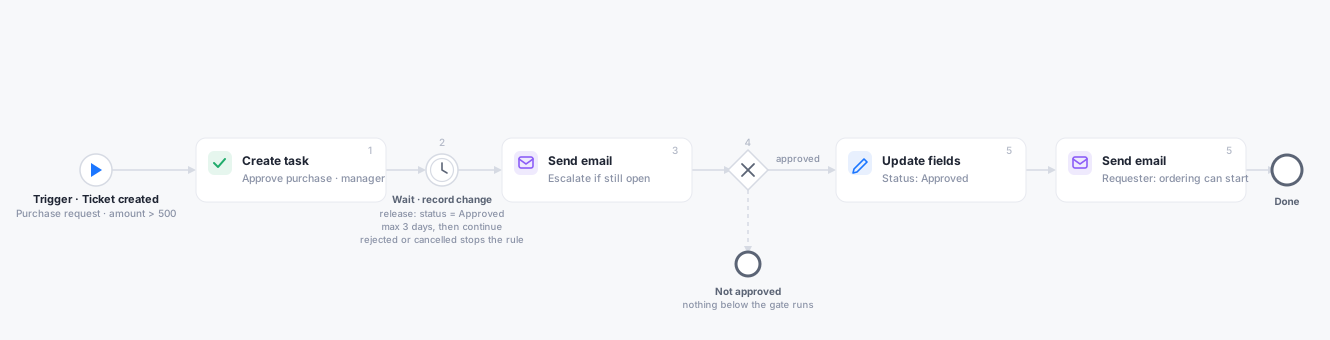
The pattern generalises to every approval: contract sign-off, content review, access requests. The wait carries the question, the release criteria define “yes”, the stop path defines “no”, and the time limit defines “too slow”.
3. A cancellation fee ladder
Pricing with tiers is what the Only run the first matching action setting is for: the steps become a ladder and the first matching one wins. This one charges for late cancellations of a room booking.
Setup: the rule runs on room bookings, trigger Updated watching the cancellation field, condition: is cancelled changed to yes. Rule setting: only run the first matching action.
| Step | Condition | Outcome |
|---|---|---|
| 1 · Set price | Hours until start less than 48 | 100% of the base price. |
| 2 · Set price | Hours until start less than 168 | 50% of the base price. |
| 3 · Set price | Always | Free. The fallback rung, so an early cancellation is explicitly free instead of silently unpriced. |
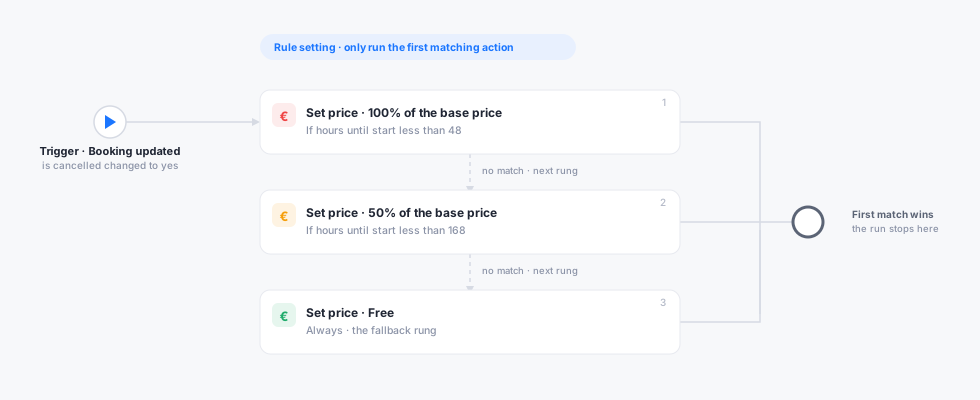
Order the rungs narrowest first: the ladder stops at the first match, so “less than 48 hours” must sit above “less than a week”. The price is always computed from the line’s base price, never from its current price, so a rule that fires twice cannot compound the fee, and a price someone overruled by hand is never touched. This ladder ships as the “Late cancellation fee” preset, so you can start from a working copy.
4. Feedback without spam
Two small rules that together keep a steady, low-noise feedback stream going.
After every booking: rule on bookings, trigger Before or after a date, one hour after the end date. One step: send email to the organizer with the feedback form. Run limit: once per record, so a rescheduled booking does not ask twice.
Every tenth closed ticket: rule on tickets, trigger Updated watching the status, condition: status changed to a closed status. Run limit: every Nth time with N set to 10. One step: send email asking for a rating. The counter lives in the rule, so it is company-wide: every tenth closure asks, whoever closed it.
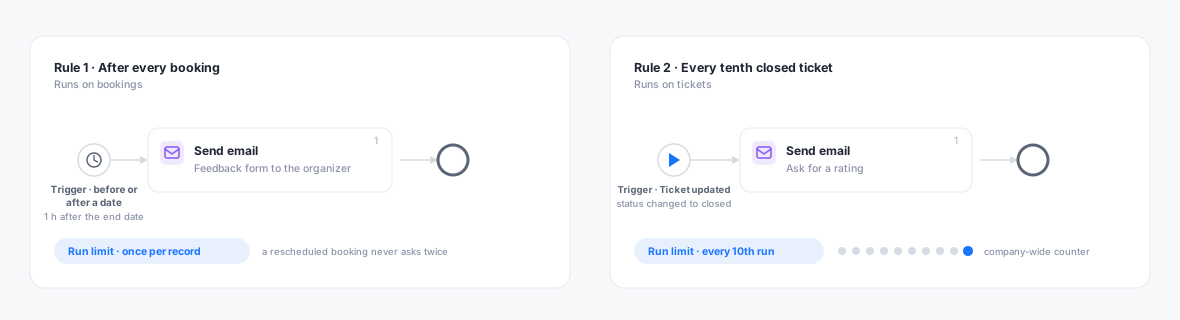
The run limit is doing the real work in both rules. Skipped runs show up in the history as exactly that, so you can verify the cadence instead of guessing.
5. GDPR retention
Personal data must go when its purpose is over, and by policy rather than by memory. The compliance actions plus a scheduled trigger make retention a rule you can show an auditor.
Setup: the rule runs on visitors, trigger On a schedule, weekly on Sunday night. Conditions: visit end date more than 180 days ago.
| Step | What it does |
|---|---|
| 1 · Anonymize record | Strips the personal data from every visitor record older than the retention window; the visit itself stays countable for reporting. |
| 2 · Webhook | Optional: notify the compliance dashboard how many records this pass touched. |
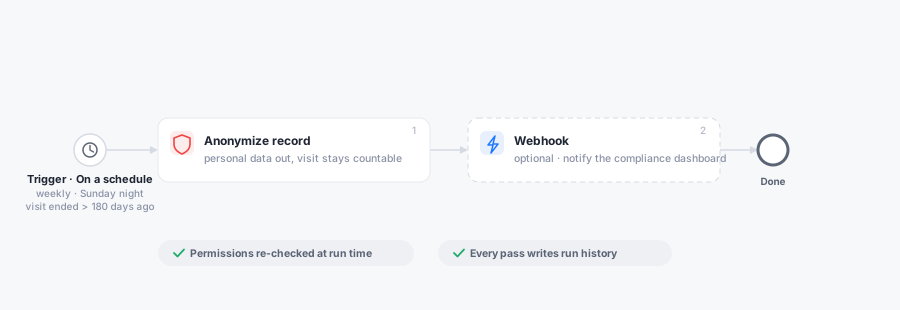
Two properties matter here. The compliance actions re-check the rule author’s permissions at execution time, so a rule outliving its author’s rights skips rather than deletes. And every pass writes run history, which is precisely the evidence a retention policy needs. Use Delete record instead of Anonymize where nothing at all may remain, and prefer soft delete unless policy demands hard.
6. An AI first response on every ticket
A ticket that arrives at 02:00 has had its first treatment by 02:01. The Trigger AI action puts an agent at the front door of the service desk: every new ticket is read, summarised, categorised and given a draft reply before a colleague opens it.
Setup: the rule runs on tickets, trigger Created, no conditions: every report counts. The “AI summary on new tickets” preset is the working starting point.
| Step | What it does |
|---|---|
| 1 · Trigger AI | Pick the mode "Give a custom instruction" and write the assignment in your own words: read the full ticket (title, description and conversation) and deliver in one pass a summary of at most two sentences, the likely category and urgency, the most useful next step and a draft reply to the requester. Say explicitly that the instruction runs unattended: no questions, no confirmation, one pass. If you maintain your AI use cases centrally under Settings > AI, pick "Run configured use cases" instead: whatever is configured there runs on this record. |
The escalation partner is a second, small rule beside it: on tickets, trigger Updated watching the priority, condition: priority changed to Critical. One step: send chat message to the on-call workgroup in Teams or Google Chat. The rule watches the record, not the author of the change, so it fires whoever raised the priority: a colleague, or the AI when you run a classify use case that sets it.
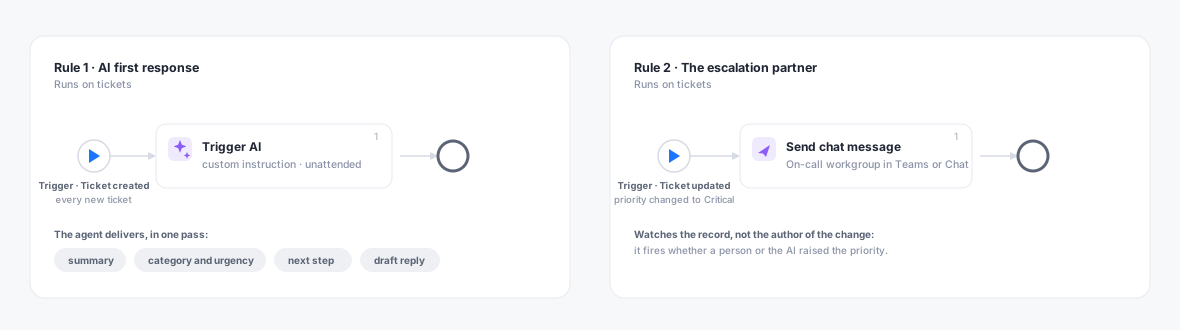
The boundary is deliberate: the agent works inside Gfacility. It reads, summarises, categorises, drafts and refers; the hands on the keyboard stay human. Which is exactly what you want at 02:00: whoever picks the ticket up at 08:30 starts with a summary, a suggested next step and a reply ready to go, and only what turned out genuinely critical was flagged to the on-call team right away. What an agent can do and how to set up use cases is on AI Use Cases.