
Desk 2.14
Window zoneFavourite
Give every building a visual layer. Colleagues see which rooms and desks are free on an interactive floor map, then book the right spot in a click, with the same rules, approvals and availability checks that run across Gfacility.
Floor map
Details
Desk
D-07
Flex deskFlex zone
Booked
Equipment
Booked: D-07, 11:00 - 12:00
Illustrative floor plan. The colours show what you can book in the selected time slot, not who is sitting where.
From plan to floor
Follow one floor, from the plan an admin uploads to the numbers at the end of the month.
Map your floor
Upload a plan, trace the rooms and drop the desks. Every marker links to a record you already keep.
Book from the map
Colleagues click a free spot and the booking form fills itself in.
Check in, or let it go
A check-in confirms the desk is really in use. No check-in, and the spot goes back to the pool.
A kiosk in the lobby
The same map full screen on a wall display, so finding a free spot takes a glance.
Insight without sensors
Bookings and check-ins are the measurement, so you see how the floor is really used.
The floor plan editor
An admin uploads a plan per floor, traces the room zones and drops desks, assets and points of interest on top. Every marker links to its existing record in Gfacility, so nothing is created twice.
Floor plan editor
Head office, level 2
Linked record
AssetEspresso machine
A marker links to an asset, a configuration item, a product or a point of interest. Each record is placed once.
Mapping progress
Level 2
12 of 14 desks mapped
Rooms link to the room records you already have in Gfacility, so you never recreate them.
The backdrop is an image you trace over: upload a jpg, png or svg of the floor.
Booking a desk
Pick the building, the day and the part of the day. The desks you use most are already at the top, ranked on your own booking history. Book two spots in one go and hand the second one to a colleague.
New desk booking
Booking for Peter Klein
Building
Breda office
Day
Tomorrow
Part of the day
Suggested for you
Favourites and the desks you book often come first
Desk 2.14
Window zoneFavourite
Desk 2.31
Team zone MarketingOften used
SBAssigned to Sarah Bennett
Desk 2.18
Focus zoneFree
Desk 2.22
Window zoneFree
Booked
Full day, tomorrow. The second desk belongs to the colleague it is assigned to, not to the person who booked it.
Rooms and desks book the same way, with the same rules, restrictions and approval flows.
Explore room booking→Gfacility connects to the Zens Desk Management System: the Smart PuK, a wireless charger built into the desk with an LED ring and a presence sensor. The ring stays dark while a desk is free or in use, turns orange when a reservation is about to start, and turns blue in the evening on the desks that were used that day.
An LED ring that only lights up when it matters
There is no colour code to learn: the ring stays dark while a desk is free and while someone is working at it, so the floor stays calm. It turns orange when a reservation on that desk is about to start.
Blue in the evening, so cleaning knows where to go
At the end of the day the desks that were actually used light up blue. The cleaning round follows the light instead of doing every desk on the floor.
Automatic check-in by the presence sensor
Sit down and the sensor in the desk checks you in on your booking. Nobody forgets to check in, so auto-release never cancels a desk that is actually being used.
Wireless charging in the same spot
The Smart PuK is also a Qi charger. Put your phone on the desk and it charges while you work, with no cables on the desk.
 Zens is a Gfacility integration partner.
No-shows
Checking in is a scan of the QR code on the desk. When nobody scans, the server hands the desk back after thirty minutes, so a no-show does not keep blocking the desk for everyone else.
Thursday morning, third floor
Two desks, two outcomes
Claimed
Desk 2.14Desk 2.14
Scan to check in
Gfacility
Desk 2.14
Checked in
09:02
People check in by scanning the QR code on the desk, or the booking is set to checked in on the record. There is no check-in button on the floor map.
Not claimed
AvailableDesk 2.18
Booked by Laura Bennett
The booking is not deleted. It is checked out and stays in the history, so the desk is free again and the no-show is still there to report on.
It runs on the server
The release is a scheduled job in Gfacility. Nobody has to keep an app open for a desk to come free.
Only where check-in is required
It applies to the reservation purposes you switch check-in on for. Every other booking is left alone.
Leaving early frees the desk
Check out and the desk is available again for the rest of the day, without anyone waiting for a timer.
Desks with Zens hardware in them confirm presence from the desk itself, so nobody has to remember the scan.See the Zens integration→
In the lobby
Run the same floor map full screen on a wall-mounted tablet. Anyone walking up picks a building and a floor and sees the whole floor colour coded live, with the free count per floor next to it.
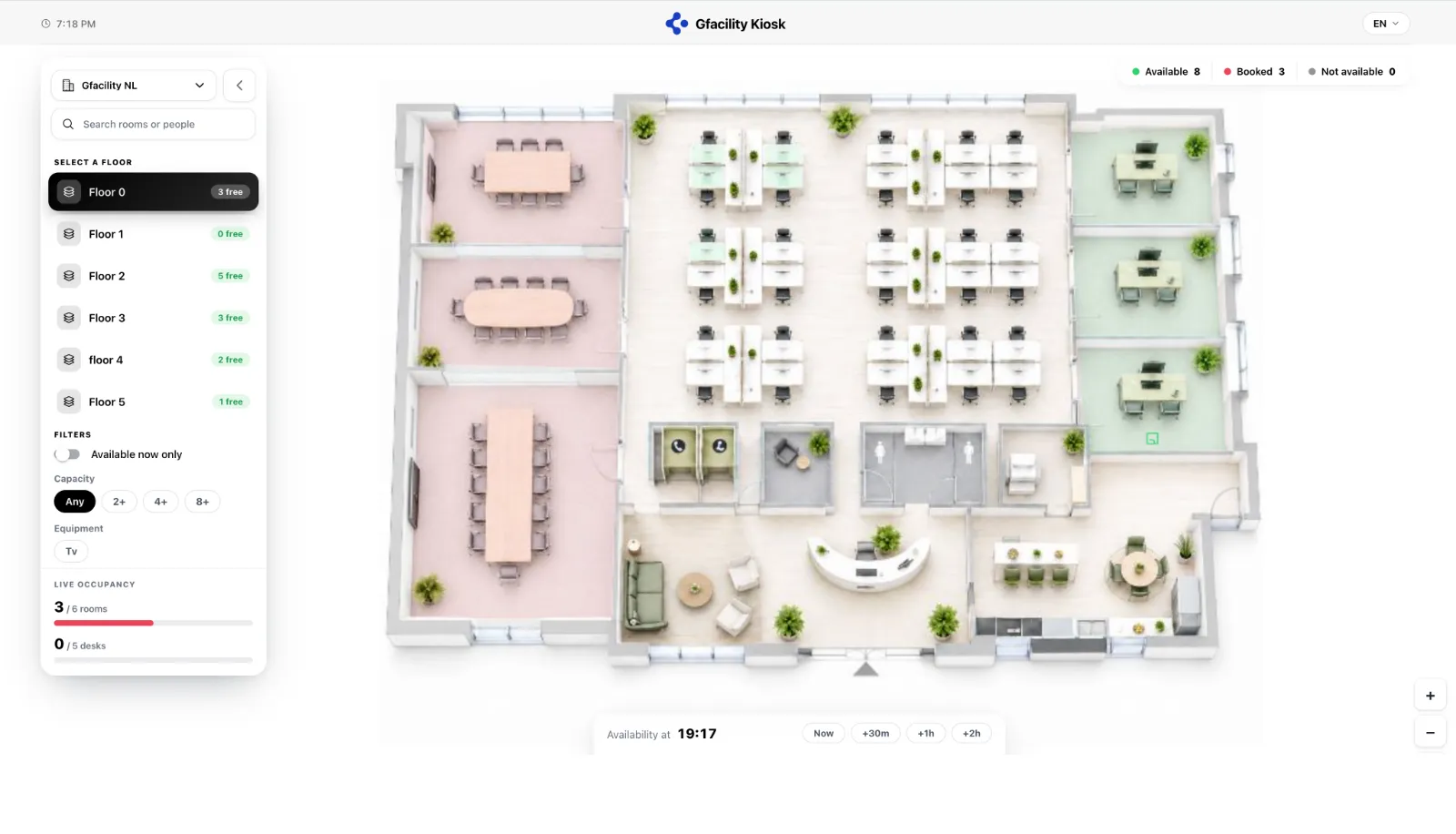
The floor map kiosk, running full screen.
Three states, one colour each
Now, or a little later
The time slider re-colours the floor for the moment you ask about, so you can see what is free after your next meeting instead of only right now.
No sign-in
The kiosk shows the floor to whoever is standing in front of it. Nobody types a password on a wall display.
Filter down to a spot that fits
Available now only, capacity and equipment narrow the plan, and a live occupancy panel keeps the running totals for rooms and desks in view.
Find the person, not just the desk
The kiosk searches rooms and people, so a booked desk leads you to the colleague sitting there today. The floor map in the browser is about spots, not people.
Office days
One click puts your Tuesday in the office. You book your desk in the same screen, and one more tap brings it back every Tuesday.
Your week
One click per day
Set the day
Tuesday, in the office
Desk with that? One tap.
Desk 2.14 booked
Same desk every Tuesday?
In your week from now on
Mon
Remote
Tue
Office
2.14Wed
Office
Thu
Remote
Fri
Away
Every Tuesday desk 2.14 is back in your week, so no Tuesday starts with hunting for a spot.
In on Tuesday
Pick your teams and one week shows them all, so you can move a day to where the people are.
Microsoft 365
Work hours and location
Tuesday
In the officeBreda office
Gfacility
The day people declare in Gfacility can be written into their Microsoft 365 work location, per user and with their consent. It is a work location, not a meeting: nothing lands in anyone's agenda.
What a person sets by hand wins over anything derived somewhere else.
See how hybrid scheduling works→Insights
Attendance, desk utilisation and the days people really come in, all derived from the bookings and check-ins you already have.
See what workplace analytics shows→Desk occupancy
Last 30 days, Breda office
Attendance rate
0%
of declared office days
Desk utilisation
0%
of bookable desks on an average day
Busiest day
Tuesday
78% of the team in
People in, per day
41%
78%
66%
72%
29%
Mon
Tue
Wed
Thu
Fri
Share of the team in the building, averaged over the period.
Teams that sit together
Which teams end up in the building on the same days, from the desks they book.
All of it comes from bookings and desk check-ins, so you need no hardware at all to get these figures. Desks with Zens hardware sharpen them further by confirming presence at the desk itself, and presence data from a supplier can be imported alongside.See the Zens integration→
Example data.
No. Rooms link to the room records you already have in Gfacility, so the map reuses your existing data. Desks are created as you lay out the floor, since the concept itself is new.
Yes. Desks and rooms follow the same booking rules, restrictions, approval flows and opening hours that apply across Gfacility, so policy stays consistent wherever people book.
No. Availability, automatic release and the analytics all run on bookings and desk check-ins, so a floor map works from day one without any hardware. If you already collect presence data it can be imported alongside it, and the optional Zens desk hardware adds presence detection at the desk itself.
If the reservation purpose requires a check-in and nobody checks in within 30 minutes of the start, the server releases the desk automatically and it turns green again on the map. Someone who leaves early and checks out frees the desk straight away.
On the floor map kiosk in the lobby a booked desk shows the name of the person sitting there, so you know where to find each other. In the app you see the attendees of a booking you open on the map. There is no people search on the map: you look up a desk, not a colleague.
No. You set your office day and book your desk in the same screen, and with the weekly repeat that desk is set up in your rhythm for every week. The booking itself is created per day, which keeps the floor map showing the true state at every moment.
Book a discovery call and we will map a building with you.
Schedule discovery call